Bank notifications on Android
On Android, Clatri can read the notifications from your bank's apps and the text messages it sends you, and record each transaction for you. It's what Apple Shortcuts do on the iPhone, without building anything: you choose the apps and Clatri does the rest.
You need Android 8 or later, the latest version of Clatri, a signed-in session and an active subscription.
What it does
When one of the apps you chose shows a notification, Clatri reads its text on the phone. If it passes your rules, Clatri sends it to the assistant, which reads it in full and records what it was: a purchase, a withdrawal, income, a refund, a transfer or a payment, in the right account. If it doesn't know which account it came from or what it was, it asks you in the chat.
Not everything that arrives is a transaction. If the notification carries a due date, a minimum payment, a balance or a rate change, Clatri updates that card, account or debt. A bank offer isn't simply discarded: Clatri compares it with your debts, income and savings and tells you whether it's worth it.
Anything that doesn't pass your rules never leaves the phone.
Turning it on
1. Clatri's sheet
Go to Settings › Bank notifications. The sheet explains what Clatri will read before it asks Android for the permission:
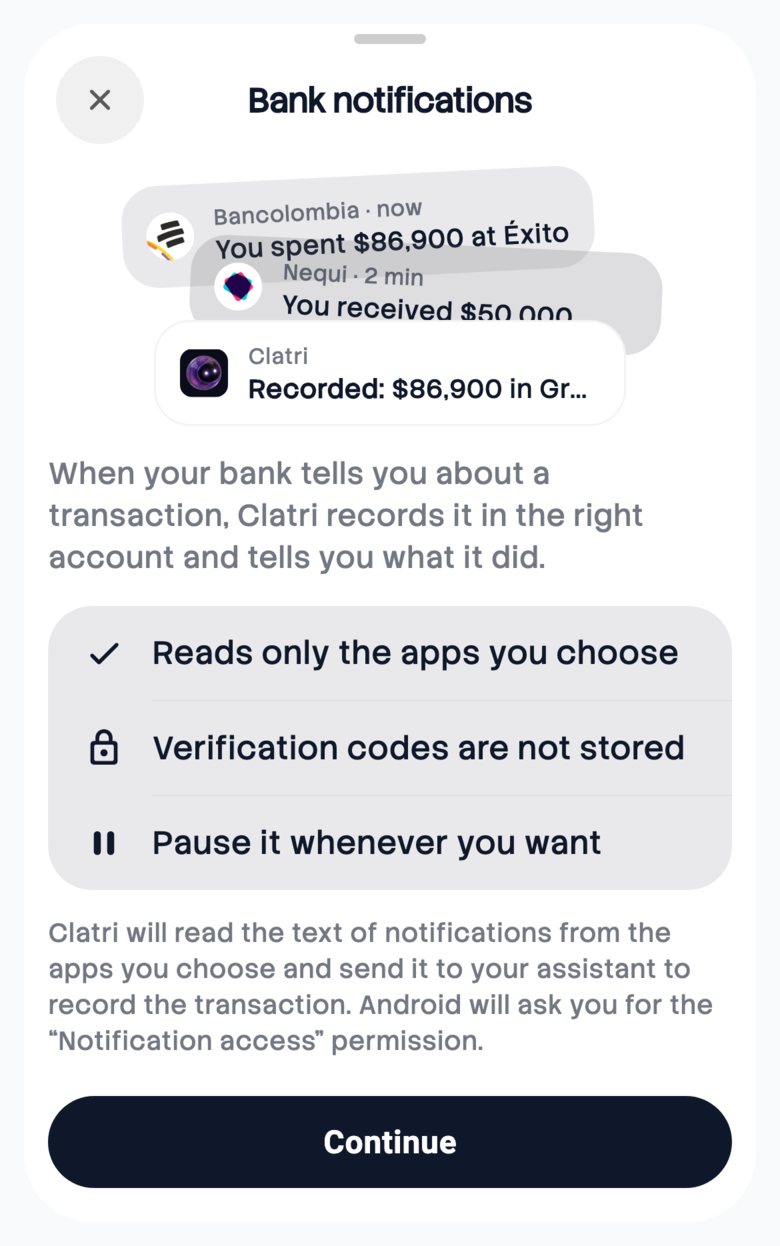
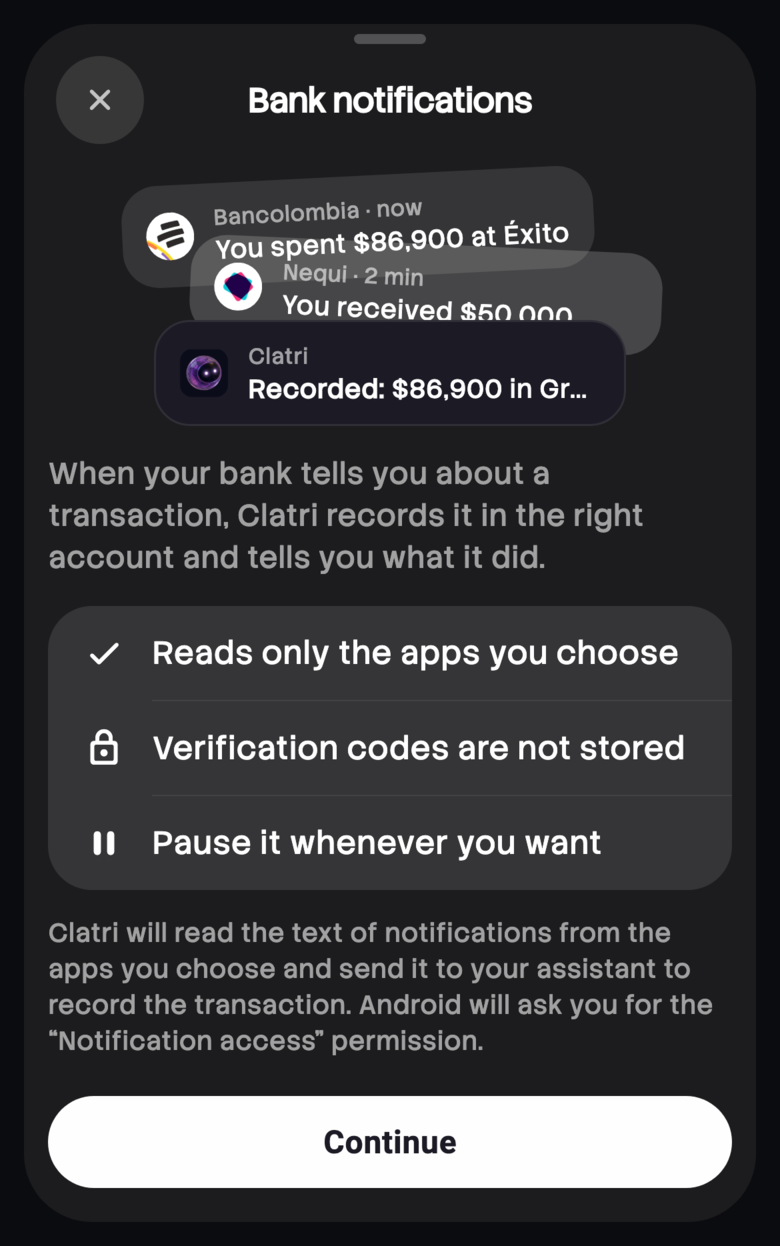
Tap Continue.
2. Android's permission
Android opens its Notification access screen for Clatri. Turn the switch on and confirm with Allow:
 Clatri
 will be able to read the notifications on your phone.
ClatriClatri will be able to read all notifications, including the text of messages you receive.
1 Turn on Allow notification access.
2 Tap Allow. Android shows this warning to any app that asks for the permission: Clatri only reads the apps you choose in the next step.
The exact wording varies a little with the phone brand and the Android version.
3. Choosing the apps
Go back to Clatri with the back button. The sheet closes on its own and Which apps does Clatri read? opens:
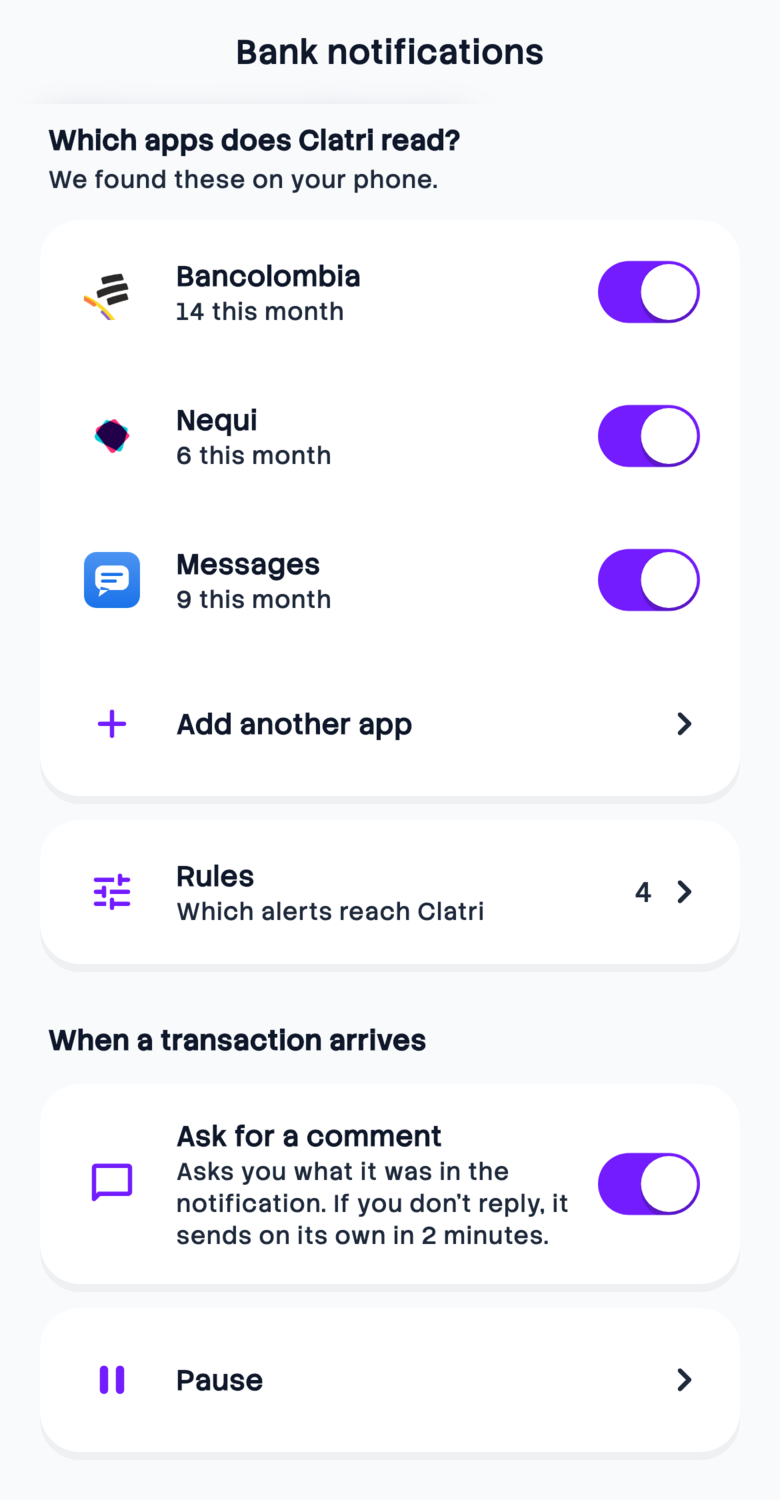
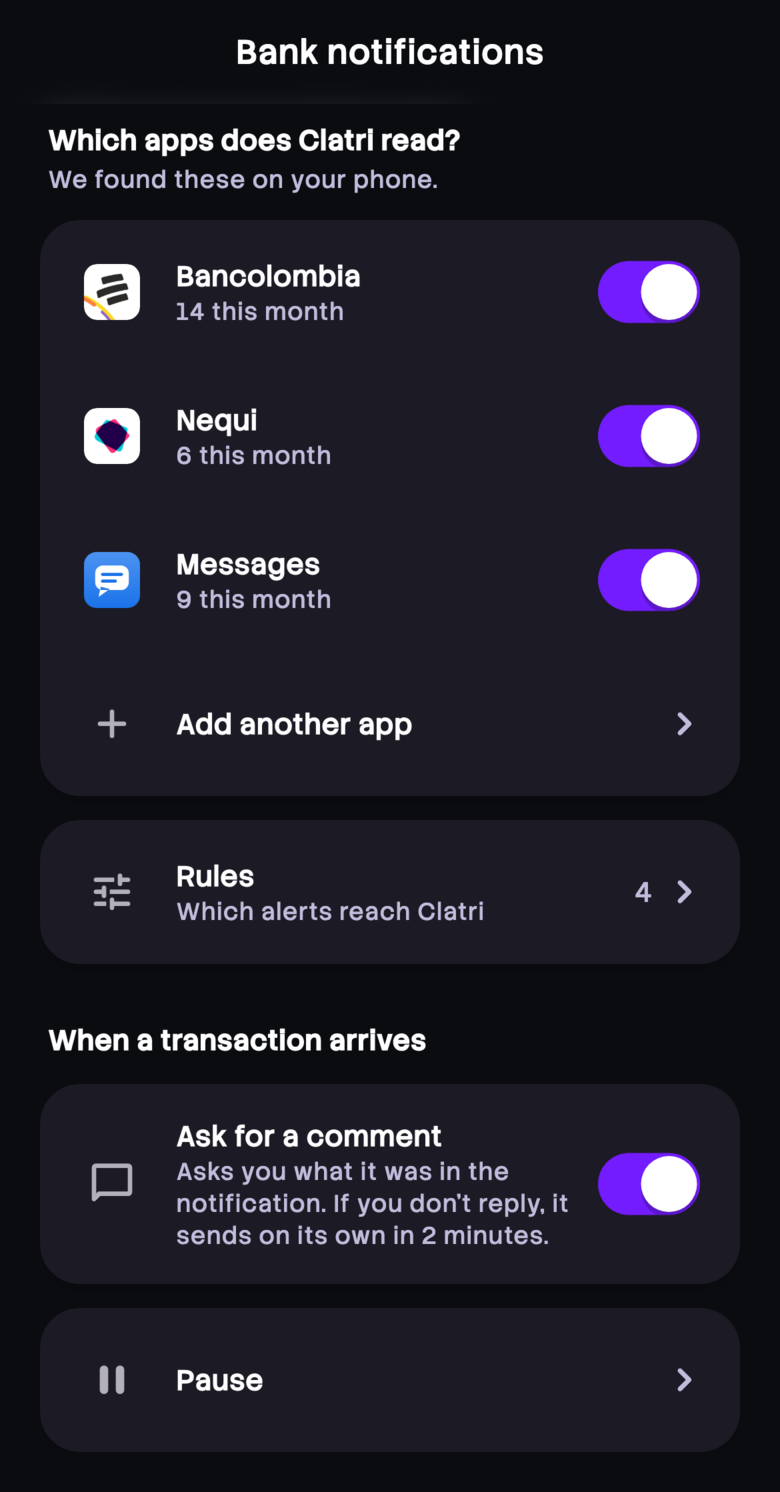
- Clatri shows the bank apps it knows that you have installed. Turn on the ones you want. Under each one you see how many alerts arrived this month.
- Add another app lists the apps that have already shown you a notification, in case your bank isn't there.
- Messages (or your phone's SMS app) is for your bank's text messages. Your personal messages arrive there too, so a text message only reaches Clatri if a rule lets it through.
- Ask for a comment turns on the “What was it?” question for each transaction.
If your bank announces the same purchase in its app and by text message, keep only one of the two. The same goes for accounts that already come in through Open Banking or the email integration: if the same payment comes in two ways, it's recorded twice.
What was it? The comment in the notification
With Ask for a comment on, when a transaction arrives Clatri shows its own notification. It asks what it was and shows the start of the alert so you know which one it is:

1 The countdown: you have 2 minutes to answer.
- Reply opens a field inside the same notification. Type what it was, for example “InDriver ride”, and send it.
- Send without comment sends it right away, with nothing else.
- If you do nothing, after 2 minutes it's sent on its own, without a comment, and the notification goes away.
It gives Clatri the context the bank leaves out. A transfer only carries a key; with “InDriver ride”, Clatri records it as transport without asking you. In the chat, your comment sits under the bank's alert:
 Notification from NequiNov 6, 20:04
1 Your comment: what you typed, as is.
A reply that arrives after the 2 minutes no longer counts: the transaction went out without a comment and isn't recorded twice. If Clatri isn't allowed to show you notifications, it can't ask and sends each transaction without a comment.
You can ask for the comment on everything (with Ask for a comment) or only for the alerts of one rule (below).
Rules
Rules are optional: they're like small shortcuts that decide which alerts reach Clatri. They run on the phone: anything a rule doesn't let through never leaves it.
- Without rules, every alert from your bank apps reaches Clatri.
- Text messages only get through with a rule that lets them.
Open them from Rules on the apps screen. Each rule reads as a sentence, with a switch to turn it off without deleting it and ••• to edit or delete it:
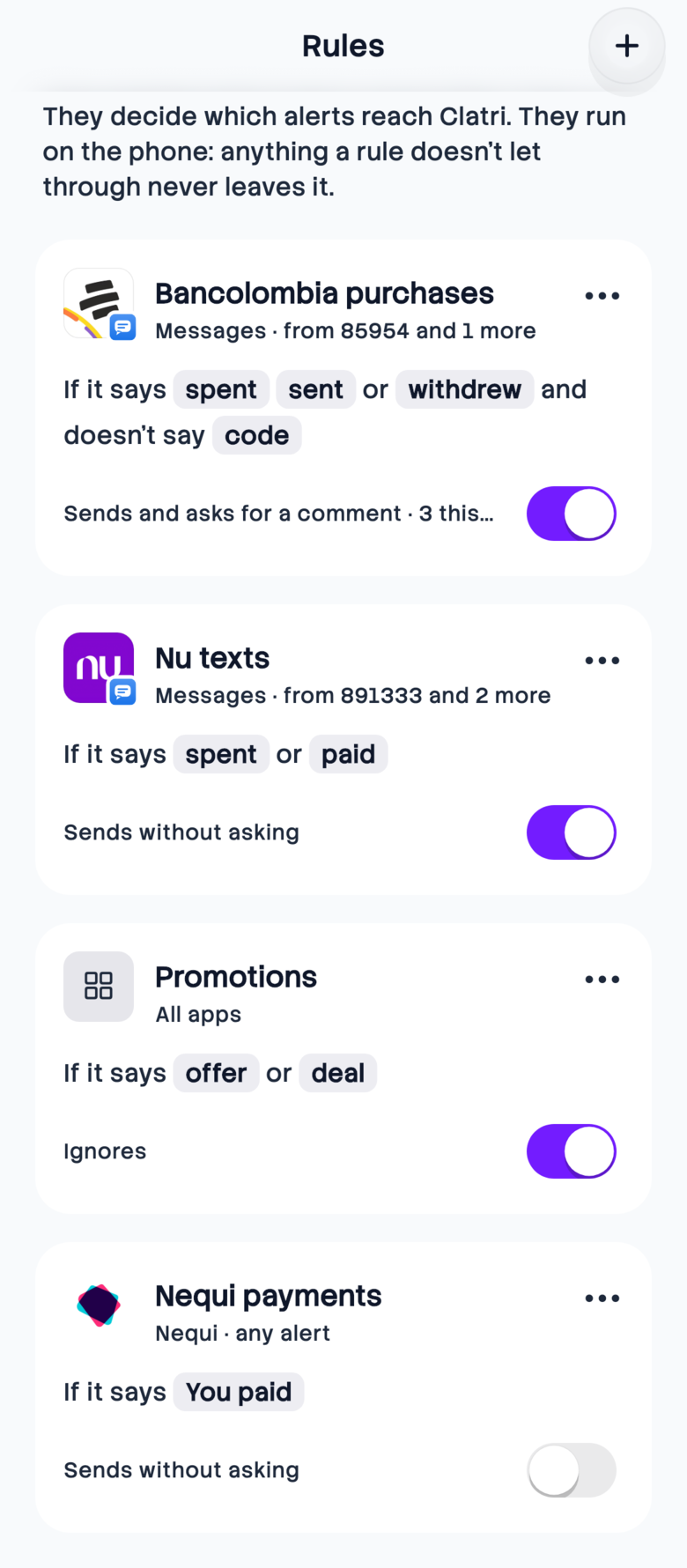
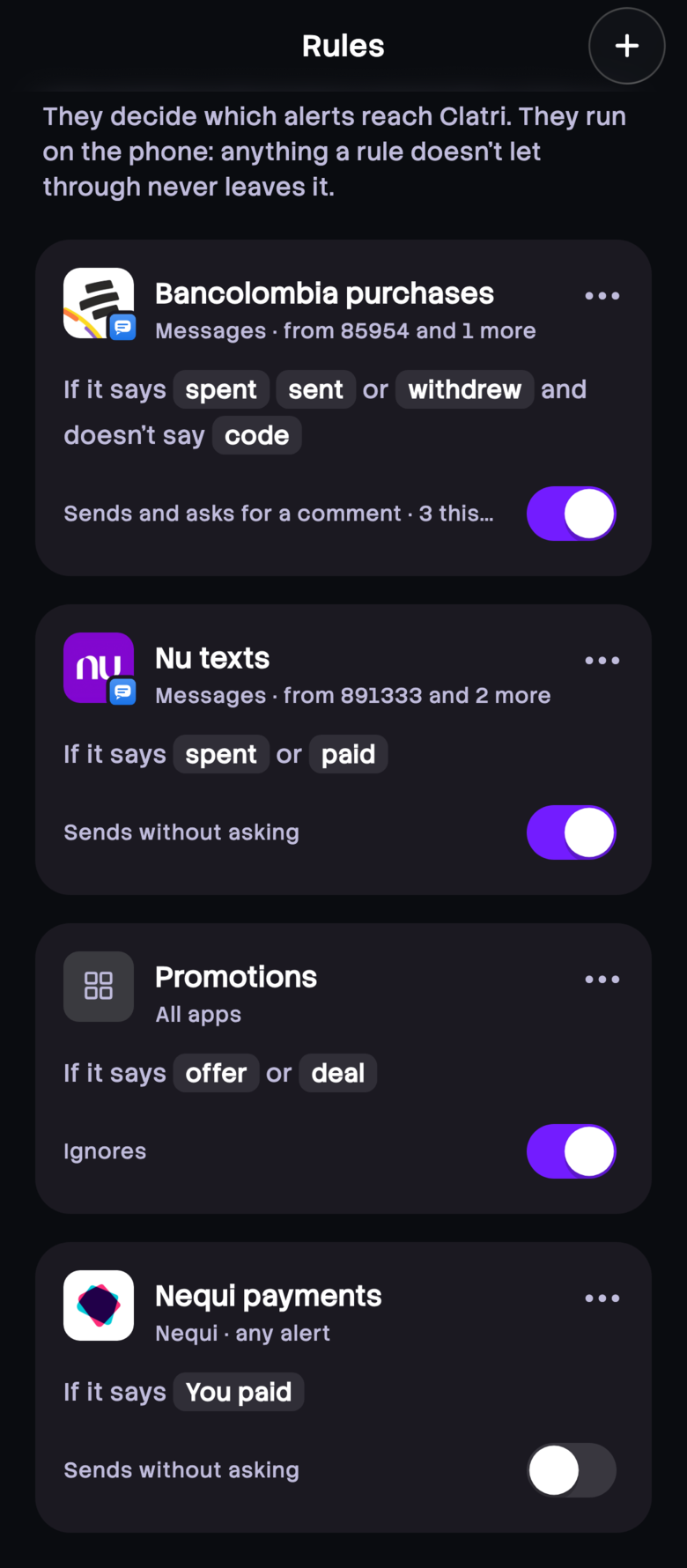
If several rules apply to the same alert, the first one in the list that is on decides.
A rule, field by field
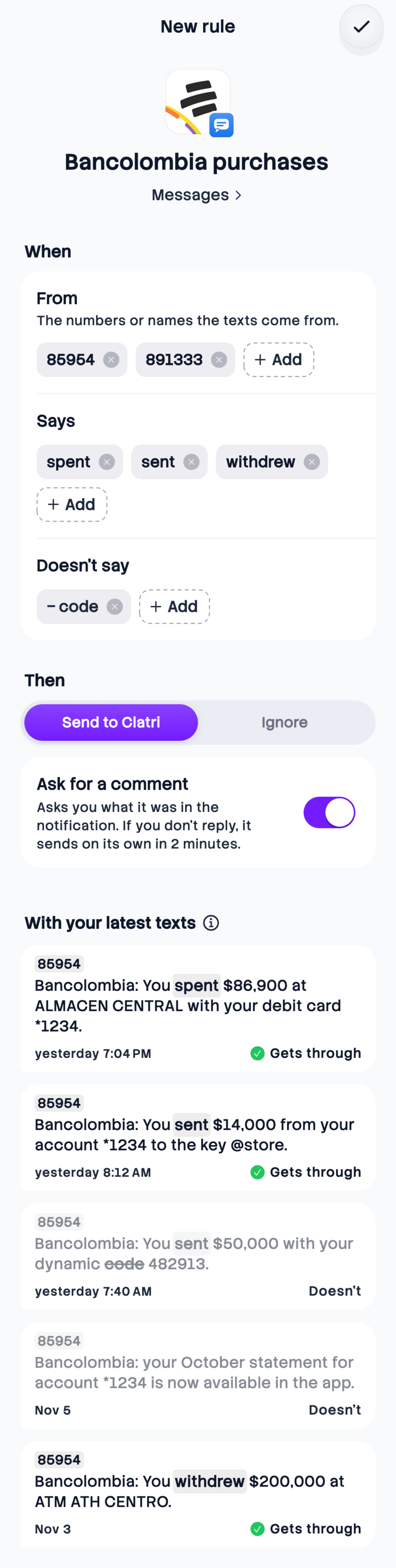
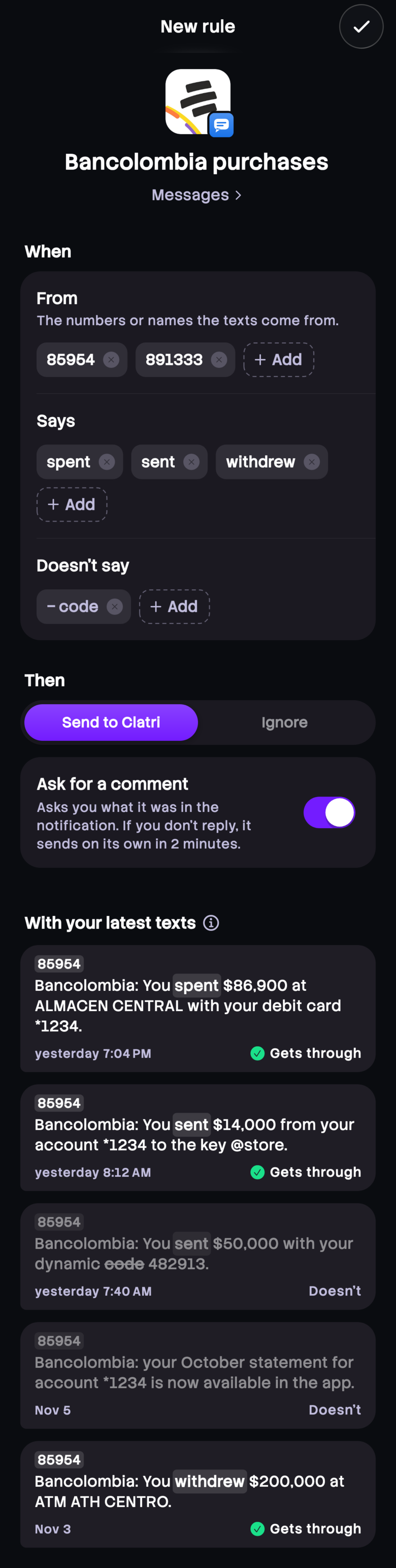
Tap + to create one. This is the example for Bancolombia's text messages:
| Field | What it means |
|---|---|
| Name and app | At the top, the rule's name and, under it, the app it applies to, or All apps. If you pick an app Clatri doesn't read yet, it tells you it will read it too. |
| From | Only in SMS apps: the sender, the number or name your bank's texts come from (85954 in the example). You can add several: type one, press Enter and go on with the next. It's enough for the text to come from one of them. |
| Says | Words the alert must contain. One of them is enough: “spent or sent or withdrew”. |
| Doesn't say | Words that leave it out. In the example, code keeps dynamic-code texts on the phone. |
| Then | Send to Clatri, with or without Ask for a comment for this rule's alerts, or Ignore, which keeps the alert on the phone. |
Upper and lower case don't matter. A text-message rule that sends needs at least one sender or one word: without them it would let all your personal messages through.
In a bank app, a rule that sends doesn't hold back the rest: alerts from that app that don't match it reach Clatri too. There, rules are mostly for ignoring (ads, for example) or for asking for the comment only on some alerts.
The preview
Under the rule, With your latest texts (or With your latest alerts) shows how it would act on what already reached your phone, while you write it:
- Gets through: the rule would send it to Clatri. The matching words are highlighted.
- Doesn't: it stays on the phone, in grey. The word that holds it back is struck through.
- In an Ignore rule, each alert says Ignored or Doesn't apply.
Those alerts stay on your phone: Clatri keeps them only there, not on its servers, uses them only to preview your rules and deletes them when you pause. The ⓘ button next to the title says so.
Pausing
In Settings › Bank notifications, tap Pause. Clatri stops reading your apps right away and deletes the alerts it kept on the phone. To turn it back on, choose the apps again. Turning off every app is the same as pausing.
You can also take the permission away from Clatri on Android's Notification access screen.
What Android hides
Since Android 15, Android hides the content of notifications that carry verification codes from apps with notification access, like Clatri. Clatri receives those alerts with the text covered and never sees the code. On earlier versions the code can arrive, but Clatri never stores it.
In the chat
Each transaction shows up in Clatri's chat as a card with its source (“Notification from Nequi”, “Notification from Messages”), your comment if you wrote one and, under it, the assistant's reply. Clatri also sends you a notification that sums up that reply: what it recorded or the question it needs you to answer.